



Bulk Upload enables you to quickly add multiple files to your Vault without creating individual records first.
If you have several files to store in your Vault, the Bulk Upload feature streamlines the process by automatically creating an individual record for each uploaded file with the file attached.
If you would like to attach multiple files to a single record, this can be performed within the Edit Record screen.
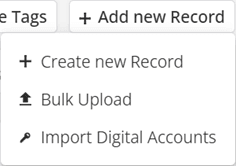
To access Bulk Upload, navigate to your Vault and click the ‘+ Add New Record‘ button, then select the Bulk Upload option:
You can also access this functionality by dropping your files into your browser regardless of what page you are on.
From the upload screen, you can add files by dragging and dropping them into the designated area or by clicking the upload area to browse and select files:
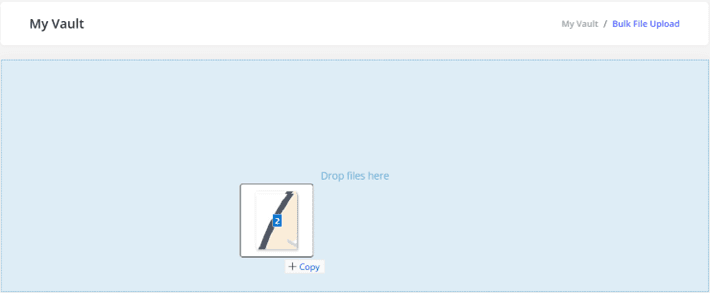
Successfully uploaded files will appear in the table where you can edit the record information.
For each file, you will need to specify:
- a Name
- the Record Type
- the Category
- the Tag

As with files that you attach directly to records, there is a 50MB upload limit.
Once you’re satisfied with your entries, click the ‘Create Records‘ button at the bottom. The records will then appear in your Vault with the files attached.