



Categories and Tags help organise your information into logical sections within your Vault.
Categories are based on four fundamental areas of life administration: Financial, Legal, Medical, and Personal. These are fixed and cannot be modified, though virtually everything you store will fit into one of these categories. For items that don’t align with these categories, you can apply custom tags.
Tags are designed around the primary information types within each category. While the default tags should accommodate most needs, you can create and manage custom tags to organise your Vault according to your preferences.
When browsing your Vault, tags appear on the left Filter panel, allowing you to filter records by specific tags:
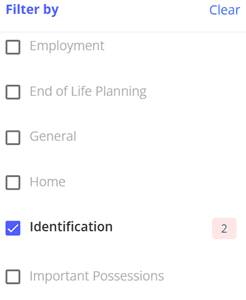
When you select a tag, your Vault will filter to display only the records with that tag.
Multi-Select: To select multiple tags at once, hold CTRL while clicking each tag. This lets you view records from all selected tags simultaneously.
Creating Custom Tags
If no existing tag fits your record, you can create a custom one directly from within the record.
In the record view, open the ‘Tag‘ dropdown and select ‘+ Create Custom Tag‘ at the bottom:
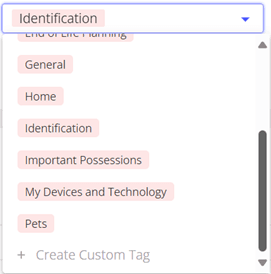
When creating a new tag, this will sit within the category that is currently selected. Make sure you are creating your tag in the right place.
Managing Custom Tags
After creating a custom tag, you can manage it from the Vault by going to the relevant category and clicking the ‘Manage Tags‘ button:
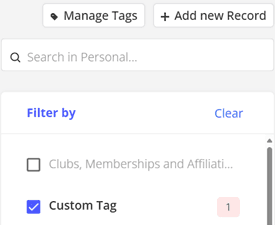
From this screen, you can rename the tag, mark it as confidential, or delete it.
Tags can only be deleted if no records are currently using them. To delete a tag that’s in use, you must first remove it from all associated records.
A tag that is set to be confidential means that all records with that particular tag will never be shared under any circumstances, regardless of the individual settings of the record.