



Two-Factor Authentication (2FA) requires a second method of authenticating your identity before accessing your account. Your password is always the first layer of authentication.
For the second layer, LifeReady supports both SMS and App Authentication.
You must enable Two-Factor Authentication before accessing functionality like the Vault.
LifeReady cannot disable 2FA for you. If you lose access to your verification method, you will not be able to access your account without a full recovery. Refer to Two-Factor Authentication Backup below for details.
If you completely lose access to your 2FA method, the only option is to recover your account (which must be set up first). Refer to Recovering Your Account.
SMS Two-Factor Authentication
SMS 2FA requires your mobile number for authentication. Each time you log in, you will receive a verification code via SMS that you must enter.
This option is less secure than app authentication for various reasons. While it’s still better than no 2FA, we highly recommend using App Two-Factor Authentication instead.
To set up SMS Authentication, enter your mobile number and click Get Code.

You will receive a verification code via text. Enter the code and submit.
In the Security Centre, the Two-Factor Authentication card will show a green tick, indicating your 2FA is active.

App Two-Factor Authentication
App authentication uses a mobile phone application such as Google Authenticator or Authy (we recommend one of these). While all authentication apps work the same way, Authy has additional features you may find useful, such as a desktop application that lets you access verification codes without your mobile phone.
Once set up with your account, these apps display a code that changes on a fixed timeframe (usually 30-60 seconds), which you enter as the verification code after login.
To set up App authentication, you will need an authenticator app downloaded on a mobile device. Once you have the app ready, click the option to set up 2FA with an app and you’ll see a QR code (and a text-based code).
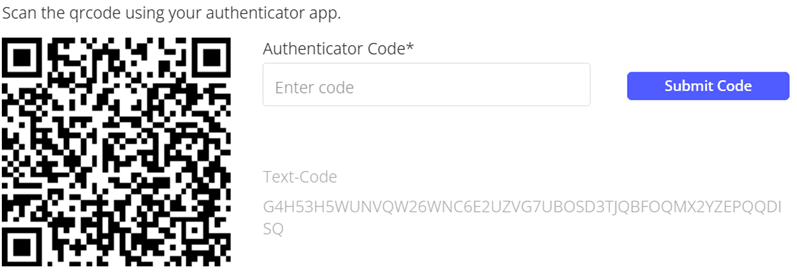
In your authenticator app, select the option to add a new account and scan the QR code (if you can’t scan it, manually enter the text-based code). You will then see a code for your LifeReady account’s email. Enter that code and click submit.
In the Security Centre, the Two-Factor Authentication card will show a green tick, indicating your 2FA is active.

Two-Factor Authentication Backup
For SMS Authentication, your SMS authentication is directly linked to your mobile number. If you lose access to your number, you won’t be able to receive verification codes. If you lose your mobile phone and/or SIM card, contact your mobile carrier to discuss options for keeping the same number or redirecting your messages.
All Authentication Apps provide options to backup your verification codes or account. If you lose access to your authentication app, you can still retrieve your codes from a new device as long as you have a backup method set up.
If you are given backup keys, store these somewhere secure (but not in your LifeReady account) to ensure you never lose access to your LifeReady account.
Disabling Two-Factor Authentication
To disable Two-Factor Authentication, expand the 2FA panel in the Security Centre and click ‘Remove 2FA’. You will be prompted to confirm, and once confirmed, it will be removed from your account. Disabling 2FA removes access to your Vault and significantly reduces your account security. We highly recommend only disabling 2FA when changing methods or resetting it.